

TL;DR:
- Poor crawl performance prevents important pages from appearing in search results.
- Properly configuring robots.txt and XML sitemaps directs crawlers effectively.
- Implementing canonical tags and technical optimizations improves crawl efficiency and site visibility.
You publish a new service page, wait two weeks, and it still does not show up in Google search results. No traffic, no leads, nothing. For many small business owners, this frustrating situation comes down to one overlooked factor: how well search engine crawlers can access and process your website. Poor crawl performance means important pages stay invisible, and your competitors capture the traffic you should be getting. This guide walks you through every practical step to assess, fix, and maintain strong crawl performance so your site earns the visibility it deserves.
Table of Contents
- Assessing your website’s crawling status
- Setting up robots.txt and XML sitemaps correctly
- Managing duplicate content with canonical tags
- Improving crawl efficiency through technical optimizations
- Monitoring, troubleshooting, and common mistakes
- What most small businesses get wrong about crawl optimization
- Discover more website optimization tools and support
- Frequently asked questions
Key Takeaways
| Point | Details |
|---|---|
| Check crawl health first | Always baseline your site’s crawl status with Google Search Console before making changes. |
| Use robots.txt and sitemaps | Guide crawlers efficiently by blocking low-value pages and submitting clean XML sitemaps. |
| Eliminate duplicates | Apply canonical tags to handle duplicate URLs and reduce crawl waste. |
| Boost site speed | Optimize server response and site speed to allow crawlers to visit more pages. |
| Monitor regularly | Troubleshoot crawl errors often and adjust your setup for sustained search visibility. |
Assessing your website’s crawling status
Before you change anything, you need a clear picture of how search engine bots currently interact with your site. Think of it like a health checkup before starting a new fitness plan. Skipping this step means you might fix the wrong things and miss the real problems.
Google Search Console is the best free starting point for any crawl audit. It gives you direct data from Google itself, which is far more reliable than third-party estimates. The three reports you should check first are Crawl Stats, Coverage, and URL Inspection.
Here is what each report tells you:
- Crawl Stats: Shows how many pages Google crawled per day, average response time, and total kilobytes downloaded. A sudden drop in crawl activity often signals a server problem or a blocking error in your robots.txt file.
- Coverage report: Breaks down which URLs are indexed, excluded, or flagged with errors. Pay close attention to the “Discovered but not indexed” category, which means Google found the page but chose not to crawl it yet.
- URL Inspection: Lets you test any specific URL to see its crawl and index status, the last crawl date, and any issues Google encountered.
You can monitor crawl health through these three reports to catch errors early, including discovered-not-indexed pages that could represent lost traffic opportunities.
Here is a quick reference table for the key metrics to watch:
| Metric | What to look for | Warning sign |
|---|---|---|
| Crawl rate (pages/day) | Steady or increasing | Sudden drop of 30%+ |
| Average response time | Under 400ms | Over 600ms consistently |
| Coverage errors | Zero or minimal | Spike in “Not found” or “Server errors” |
| Discovered, not indexed | Low count | Large and growing list |
| Valid indexed pages | Matches your live page count | Large gap between live and indexed |
Understanding search engine crawling basics will also help you interpret these numbers correctly and prioritize which issues to tackle first.
Setting up robots.txt and XML sitemaps correctly
Once you understand your crawl health, the next step is shaping how crawlers move through your site. Two tools handle this job: robots.txt and XML sitemaps. They work best together, but most small business owners either ignore them or set them up incorrectly.

Your robots.txt file sits at the root of your domain (e.g., yourdomain.com/robots.txt) and tells crawlers which pages to skip. Use it to block low-value pages like admin areas, internal search results, filter pages, and URL parameters. This prevents crawlers from wasting time on pages that add no SEO value.
Here is what robots.txt does and does NOT do:
- It blocks crawling of specified pages, saving crawl resources for important content.
- It does NOT prevent indexing if those pages are linked from external sites. A blocked page can still appear in search results if other sites link to it.
- It is publicly visible, so do not use it to hide sensitive content.
Your XML sitemap is the opposite tool. While robots.txt says “stay out,” your sitemap says “come here first.” Submit clean XML sitemaps that contain only canonical, indexable URLs with accurate lastmod dates. This guides crawlers directly to your most important pages.
Here is a comparison of how the two tools work:
| Feature | Robots.txt | XML sitemap |
|---|---|---|
| Primary function | Block crawlers from pages | Guide crawlers to pages |
| Affects indexing directly? | No | Indirectly (signals priority) |
| Required format | Plain text | XML |
| Where to submit | Root domain | Google Search Console |
| Best used for | Admin, filters, parameters | Product pages, blog posts, key landing pages |
Follow these steps to set up both correctly:
- Open your robots.txt file and add Disallow rules for admin directories, search result pages, and any parameter-based URLs.
- Build your XML sitemap using only pages you want indexed. Remove redirects, noindex pages, and duplicate URLs.
- Add accurate lastmod dates to each sitemap entry so Google knows when content was last updated.
- Submit your sitemap through Google Search Console under the Sitemaps section.
- Revisit your robots.txt every time you add new site sections or features.
For deeper guidance on allocating crawler resources wisely, explore our crawl budget optimization guide.
Pro Tip: Combining robots.txt with a noindex meta tag gives you the strongest control. Use robots.txt to block crawling and noindex to prevent indexing, especially for filter pages on ecommerce sites.
Managing duplicate content with canonical tags
Even a well-structured site can generate dozens of near-identical URLs without anyone realizing it. E-commerce product filters, blog pagination, and URL parameters like ?ref=email or ?sort=price all create duplicate versions of the same page. Crawlers waste time visiting these copies instead of your core content.
A canonical tag is an HTML element placed in the head section of a page that tells search engines which version of a URL is the “official” one. It looks like this: "`
Here is how to implement canonical tags step by step:
- Add a self-referencing canonical tag to every page on your site, even pages without obvious duplicates. This protects against future parameter issues.
- For paginated content (page 2, page 3), point the canonical back to the main page or use individual canonicals per page depending on your content strategy.
- For filtered or sorted product pages, point all variations back to the main category page.
- Check that your CMS or ecommerce platform is not auto-generating conflicting canonical tags.
- Use Google Search Console’s URL Inspection tool to verify which canonical Google recognizes for any given URL.
Self-referencing canonical tags on all pages handle duplicates and parameter variations, preventing crawl waste on similar content. This is one of the most efficient fixes available for sites with even moderate amounts of content.
Most small business owners do not realize that a single product page with five filter combinations becomes five separate URLs in Google’s eyes. Without canonical tags, crawlers spend their entire visit on duplicates and never reach your new content.
Pro Tip: Canonical tags paired with robots.txt are especially powerful for ecommerce sites and blogs with tag or category archives. Use robots.txt to block crawling and canonicals to consolidate link authority.
For more ways to strengthen your page-level signals, our guide on on-page SEO techniques covers canonical strategy alongside other ranking factors.
Improving crawl efficiency through technical optimizations
Here is something many site owners miss: Google’s crawlers behave like impatient visitors. If your server responds slowly, they crawl fewer pages per visit and come back less often. Speed is not just a user experience issue. It directly affects how much of your site gets indexed.
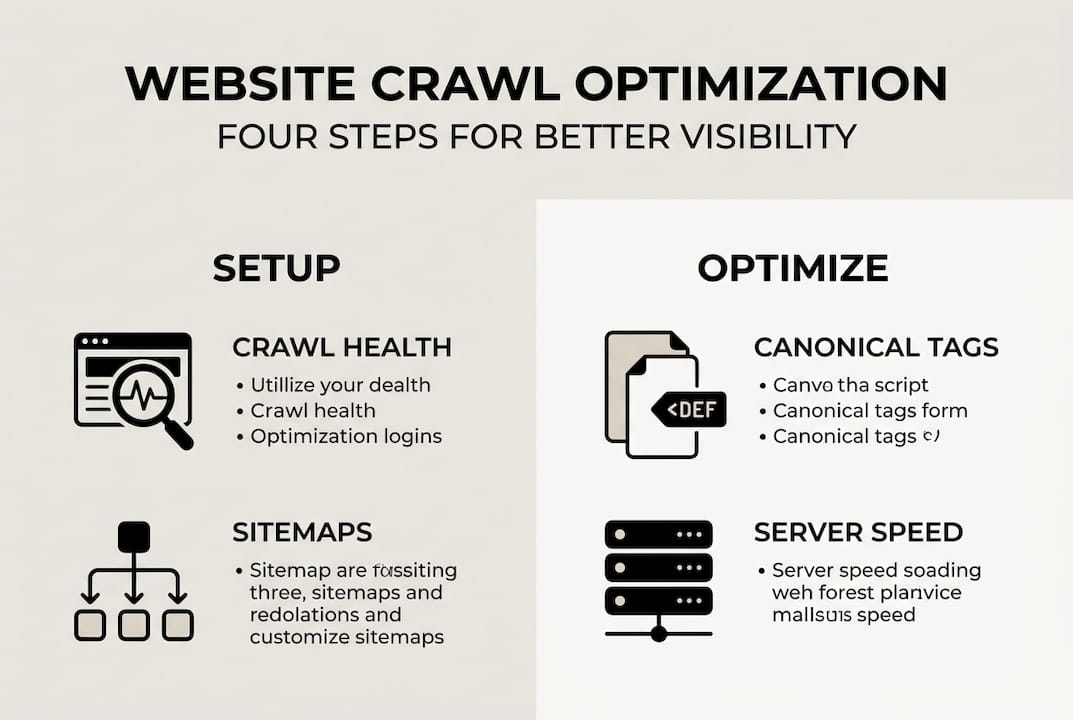
The key metric to watch is Time to First Byte (TTFB), which measures how long your server takes to respond to a request. Optimize server response time to under 400ms and use compression and a CDN (Content Delivery Network) to allow more pages to be crawled per session.
Here are the most impactful technical improvements you can make:
- Enable GZIP or Brotli compression to reduce file sizes sent to crawlers and users.
- Use a CDN to serve content from servers closer to the requester, cutting response times globally.
- Implement browser caching so returning crawlers load pages faster on repeat visits.
- Minify CSS, JavaScript, and HTML to reduce the data crawlers need to process per page.
- Fix broken internal links that send crawlers to dead ends, wasting crawl resources.
- Upgrade your hosting plan if your server consistently responds above 600ms under normal traffic.
Core Web Vitals also play a role here. A strong LCP (Largest Contentful Paint) score under 2.5 seconds signals to Google that your pages load efficiently, which contributes to higher crawl frequency over time.
Our guide on page load time improvement walks through each of these fixes in detail. Faster load times also reduce bounce rate, creating a double benefit for both users and crawlers.
Pro Tip: Compressing images and minifying scripts does double duty. It speeds up your site for human visitors and makes each crawler session more productive, meaning more of your pages get indexed faster.
Monitoring, troubleshooting, and common mistakes
Optimization is not a one-time event. Crawl issues can creep back in after a site update, a new plugin installation, or a server change. Regular monitoring is what separates sites that maintain strong visibility from those that slowly fade in the rankings.
Track crawl health using Google Search Console’s Crawl Stats, Coverage report, and URL Inspection tool on a monthly basis at minimum. Set up email alerts in Search Console so you are notified immediately when new errors appear.
Here are the most common crawl mistakes small business owners make and how to fix them:
- Blocking important pages in robots.txt: A misplaced Disallow rule can accidentally block your entire site. Always test your robots.txt using the Search Console robots.txt Tester before publishing changes.
- Submitting sitemaps with noindex or redirect URLs: Clean your sitemap regularly to remove pages that no longer exist or are set to noindex.
- Ignoring slow server response times: Many small business sites sit on shared hosting that throttles under load. Upgrade or switch to managed WordPress hosting if TTFB stays above 600ms.
- Forgetting to update sitemaps after site changes: Every time you add or remove pages, update your sitemap and resubmit it in Search Console.
- Leaving parameter URLs uncrawled and uncanonical: URL parameters from tracking or filtering can multiply your page count overnight without you noticing.
The most important errors to watch for on small sites include:
- Server errors (5xx) that make pages temporarily unreachable
- Redirect chains longer than two hops
- Orphan pages with no internal links pointing to them
- Soft 404 errors where pages return a 200 status but show no real content
A real-world example shows the payoff: a log audit on an ecommerce site resulted in a 60% crawl budget increase on core pages after applying noindex and robots.txt rules to filter pages, with results visible within eight weeks.
Pro Tip: Keep a simple log of every crawl audit you run, including dates, findings, and fixes applied. This makes it much easier to spot patterns and catch recurring issues before they affect your rankings.
For a full checklist approach, our crawl budget guide covers both beginner and advanced monitoring routines.
What most small businesses get wrong about crawl optimization
Here is the honest truth that most SEO articles skip: if your site has fewer than 5,000 pages, aggressive crawl optimization is probably not your biggest problem. Crawl budget issues primarily affect sites with over 10,000 pages, such as large ecommerce stores with faceted navigation. For a local service business or a startup with 50 pages, Google will crawl everything just fine.
We have seen small business owners spend weeks obsessing over crawl budget while their real issue is thin content or zero backlinks. The biggest returns for small sites come from basic hygiene: a clean sitemap, a sensible robots.txt, and a fast server. Get those three things right and crawl performance largely takes care of itself.
Save the advanced tactics for when you cross the 5,000-page threshold or when Search Console shows persistent technical errors. Until then, your time is better spent creating content that earns links and boosting website visibility through quality signals.
The goal is not to outsmart Google’s crawler. The goal is to remove every obstacle between your content and the people searching for it.
Discover more website optimization tools and support
Taking control of your site’s crawl performance is one of the highest-leverage moves you can make for long-term search visibility. If you want to go further, we have built a library of resources specifically for US small business owners and startup founders.

Start with our detailed crawl budget optimization guide to go deeper on the strategies covered here. For a broader look at how technical improvements connect to rankings, explore our search engine optimization resources. And if page speed is your next priority, our guide on how to improve page load time gives you a step-by-step action plan. Our team is ready to help you build a faster, more visible website.
Frequently asked questions
How often should I update my XML sitemap?
Update your sitemap whenever new pages are added or removed, and always include accurate lastmod dates so crawlers know which content is fresh.
Does robots.txt prevent indexing of blocked pages?
No. Robots.txt blocks crawling but not indexing; combine it with a noindex meta tag for complete control over what appears in search results.
What is crawl budget and does it affect small websites?
Crawl budget mainly impacts sites with over 10,000 pages; small business sites under 5,000 pages rarely face crawl budget issues unless technical errors are present.
Which technical factors most improve crawl efficiency?
Fast server response times under 400ms, GZIP compression, CDN usage, and strong Core Web Vitals scores all directly improve how efficiently crawlers process your site.
How can I check if Google has trouble crawling my site?
Use Google Search Console’s Crawl Stats and Coverage reports along with the URL Inspection tool to identify crawl errors and discovered-not-indexed pages quickly.